
How to connect Track
Connect Quibble to Track with a Server API key from your Track account.
In Track
- 1
Open API Keys
In Track, go to Configuration → Company Setup → API Keys.
- 2
Add a Server key
Click “+ Server Key”, name it Quibble, and save. Copy the key and the secret; the secret is shown once.
- 3
Note your Track domain
Your Track domain is the address you sign in at, for example yourcompany.trackhs.com. Quibble asks for it alongside the key.
In Quibble
- 4
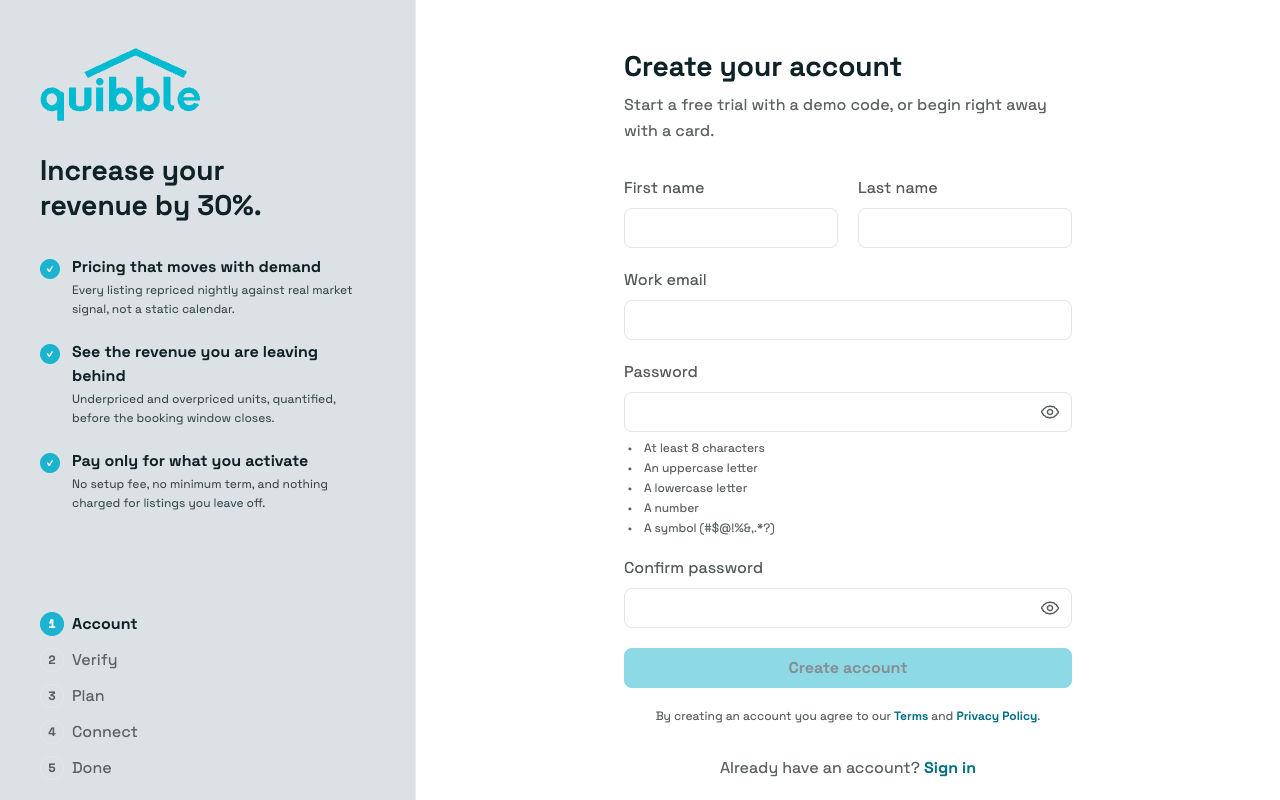
Create your Quibble account
Head to the Quibble sign-up page and create your account with your name, email and a password.
- 5
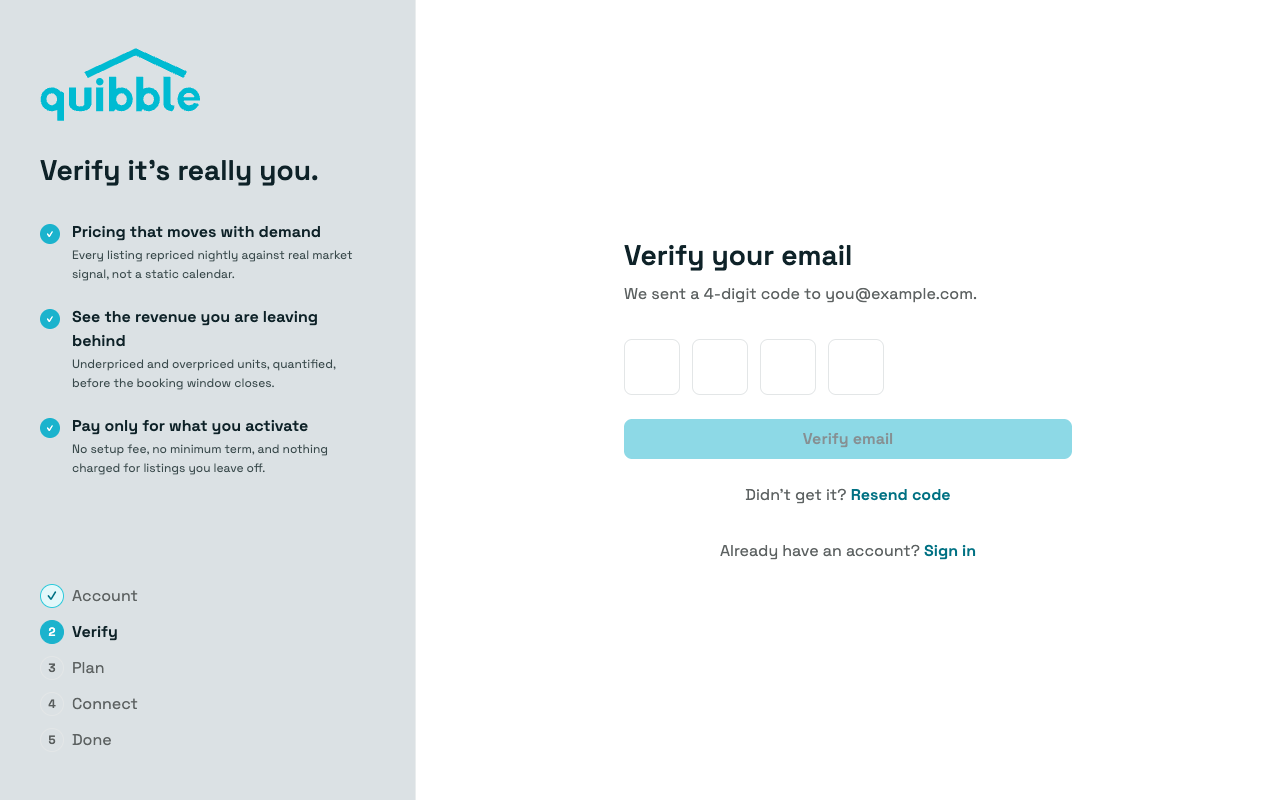
Verify your email
Enter the 4-digit code we email you. Didn’t get it? Resend code sends another.
- 6
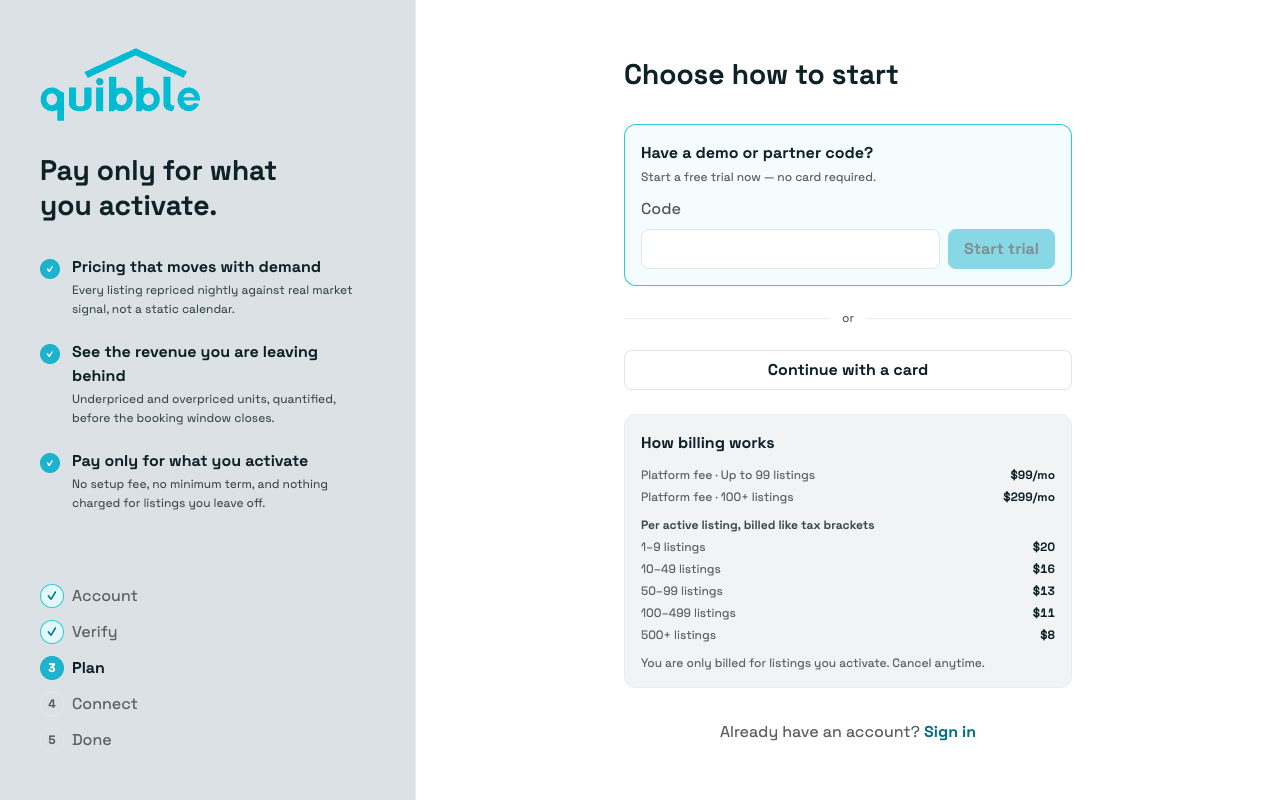
Choose how to start
Start a free trial with a demo or partner code, or continue with a card. Per-listing pricing is shown on this step; nothing is charged for listings you leave off.
- 7
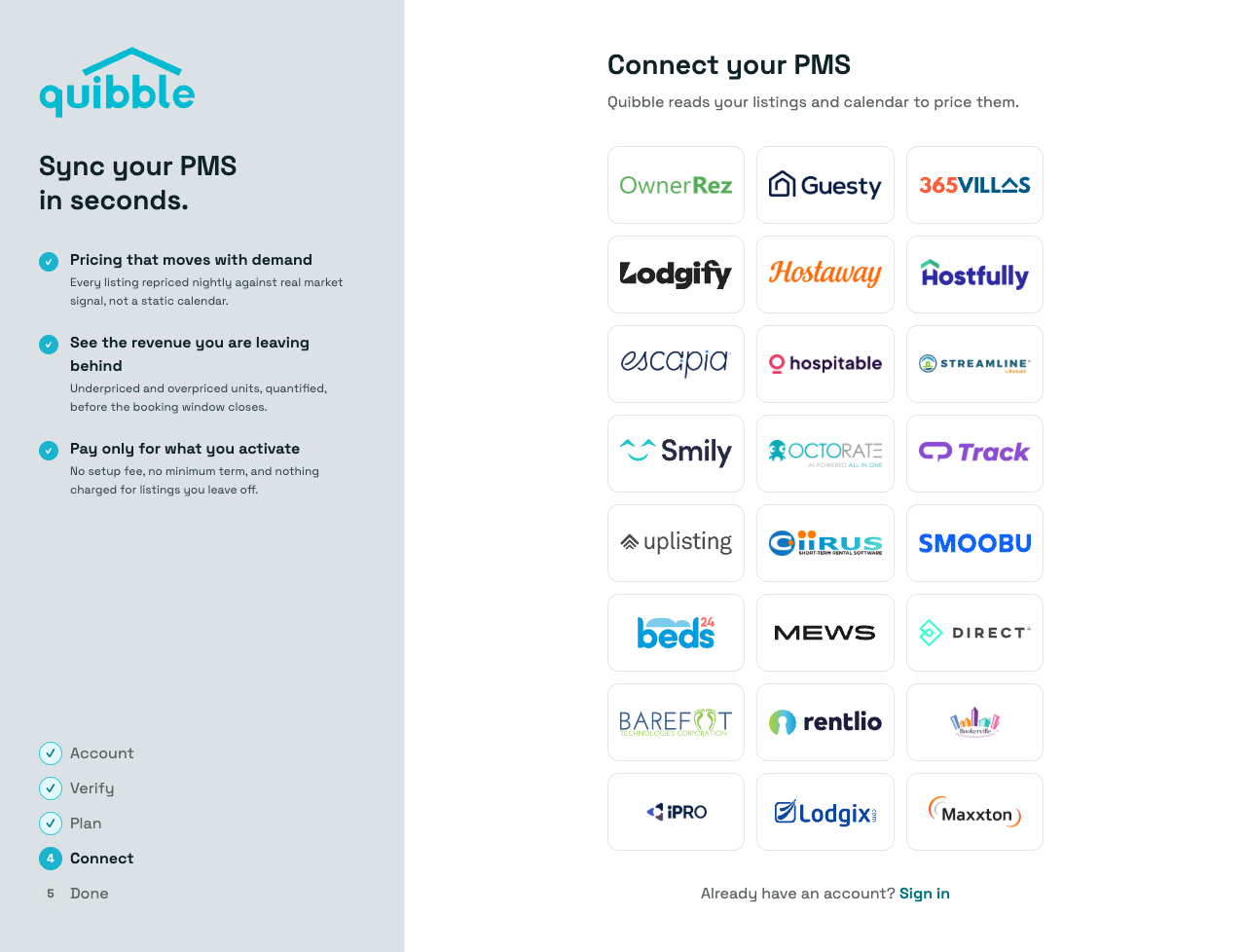
Pick Track
On the Connect step, choose Track from the grid of property management systems.
- 8
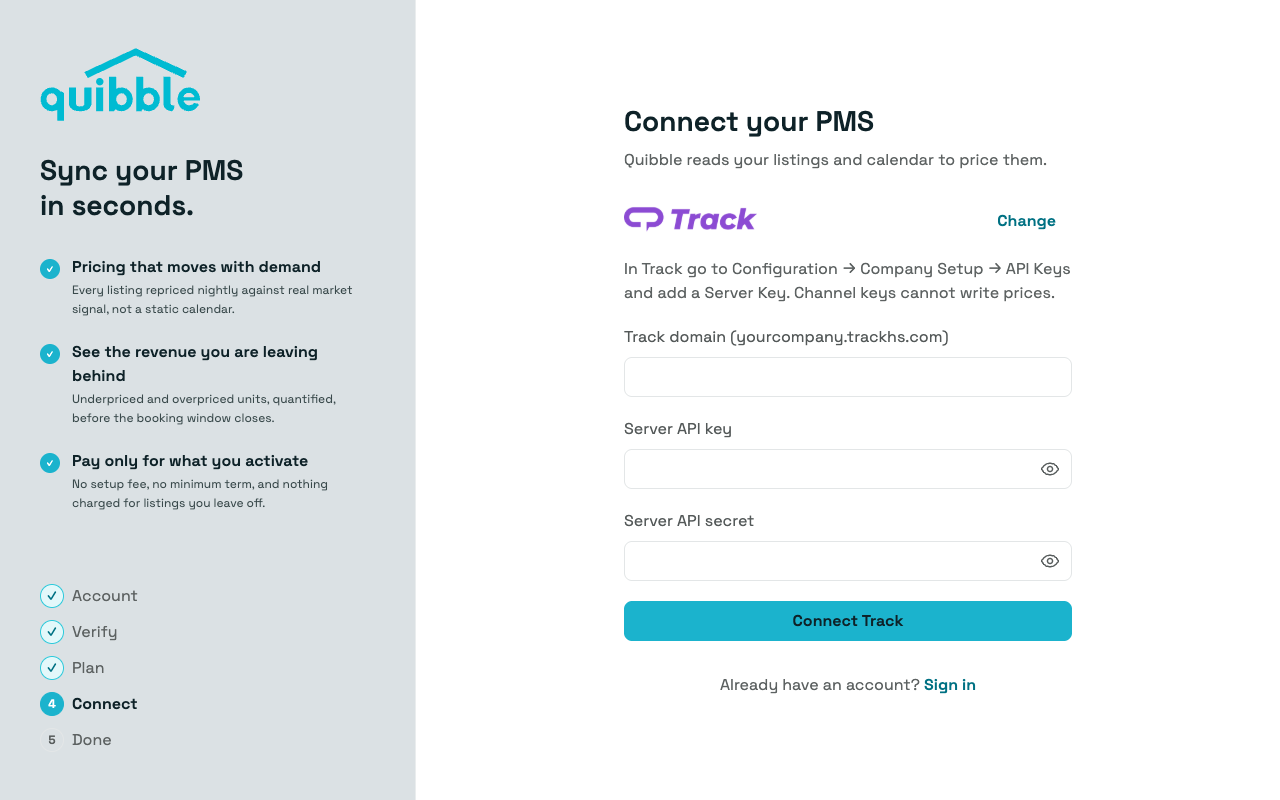
Enter your credentials
Enter your Track domain, Server API key and Server API secret, then click Connect Track.
- 9
You’re in
Quibble signs you in and the first import starts right away — the progress view narrates each stage as it lands. It usually takes a few minutes, and we email you when your pricing is ready.
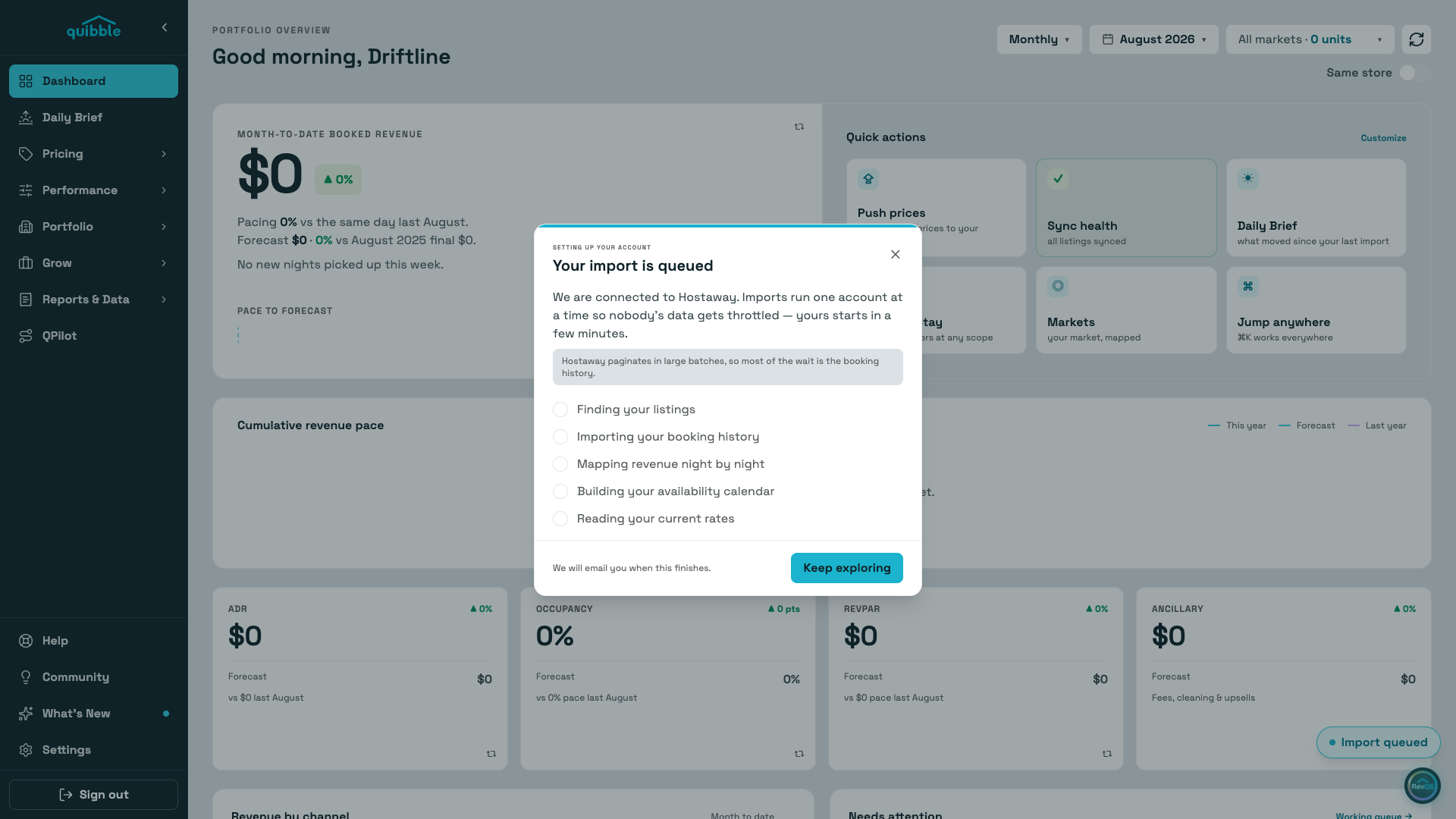
As soon as you connect, Quibble signs you in and starts importing your listings, reservation history, rates, and calendar availability. You can explore the app while the import runs — the progress view narrates each stage as it lands, and pages fill in as your data arrives. We’ll email you when your pricing is ready.