Events & Holidays Pricing
Events & Holidays Pricing lets you apply a custom multiplier to the dates around concerts, festivals, holidays, and other demand spikes.
1
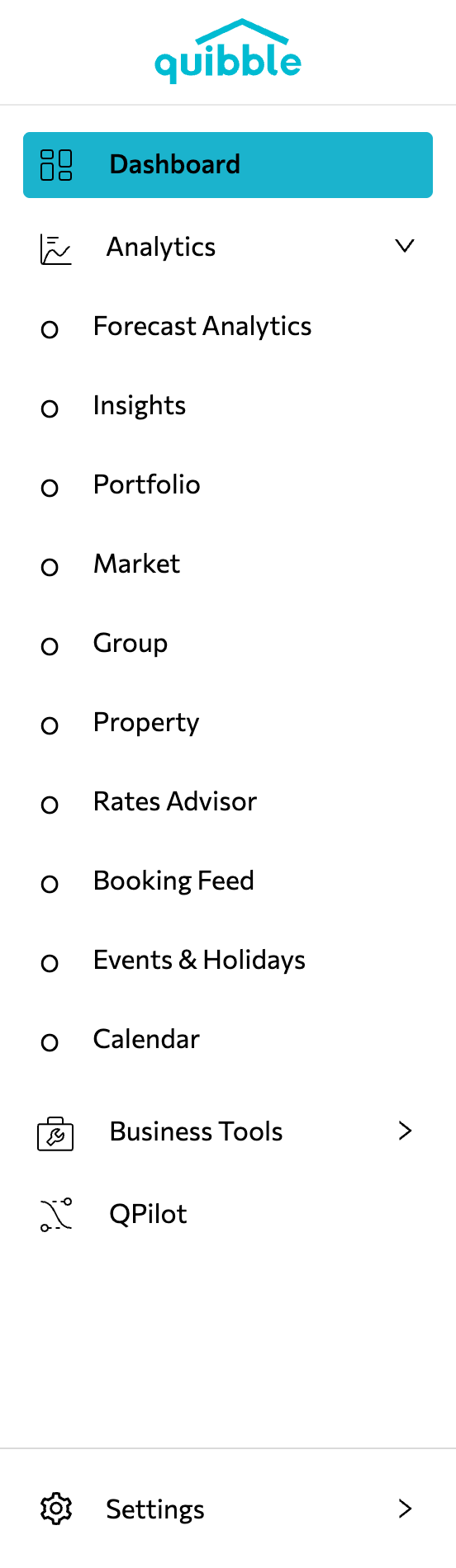
Open the left-side menu, click the Price & Stay dropdown, and select Events & Holidays.
2
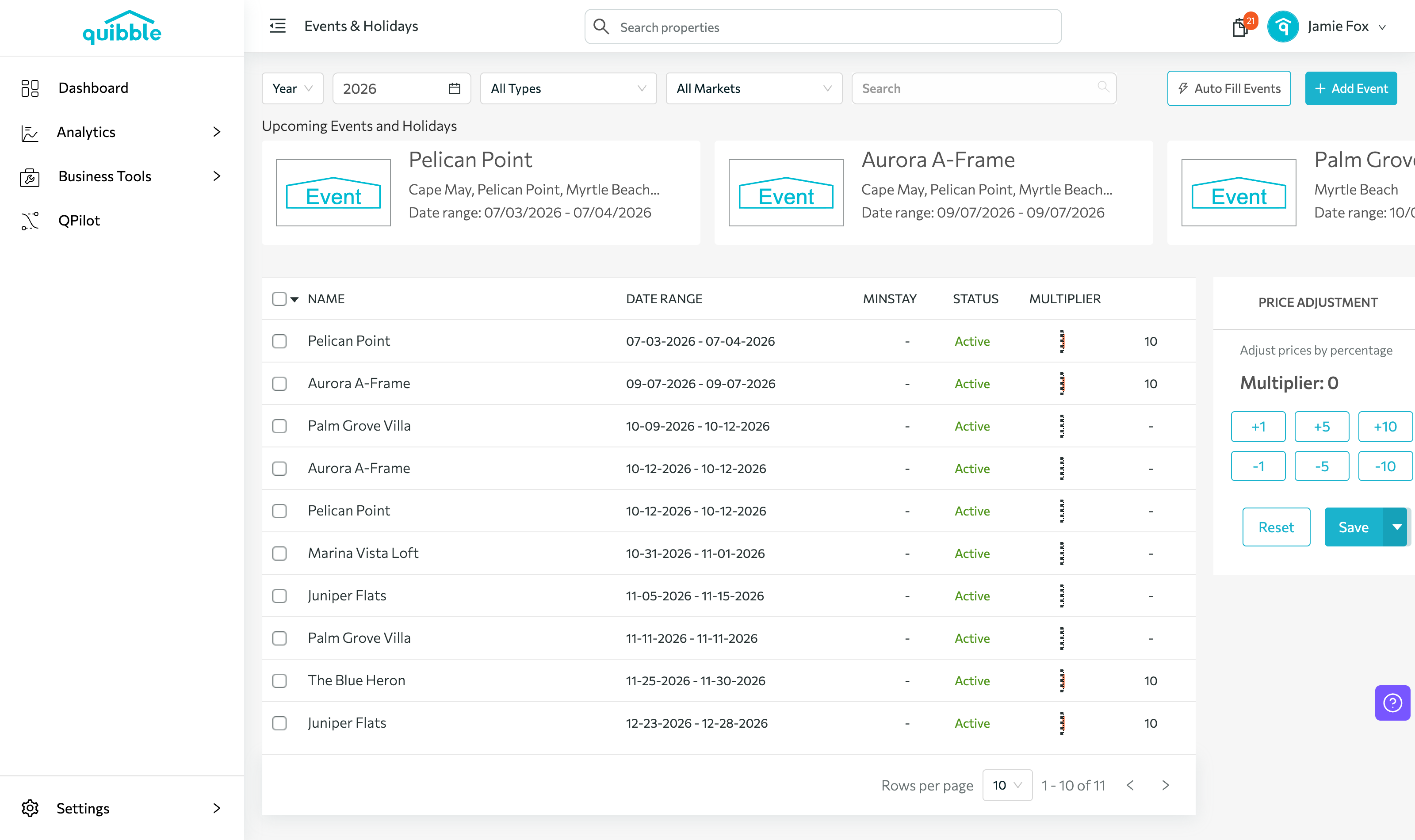
Click Add Event in the upper-right corner.
3
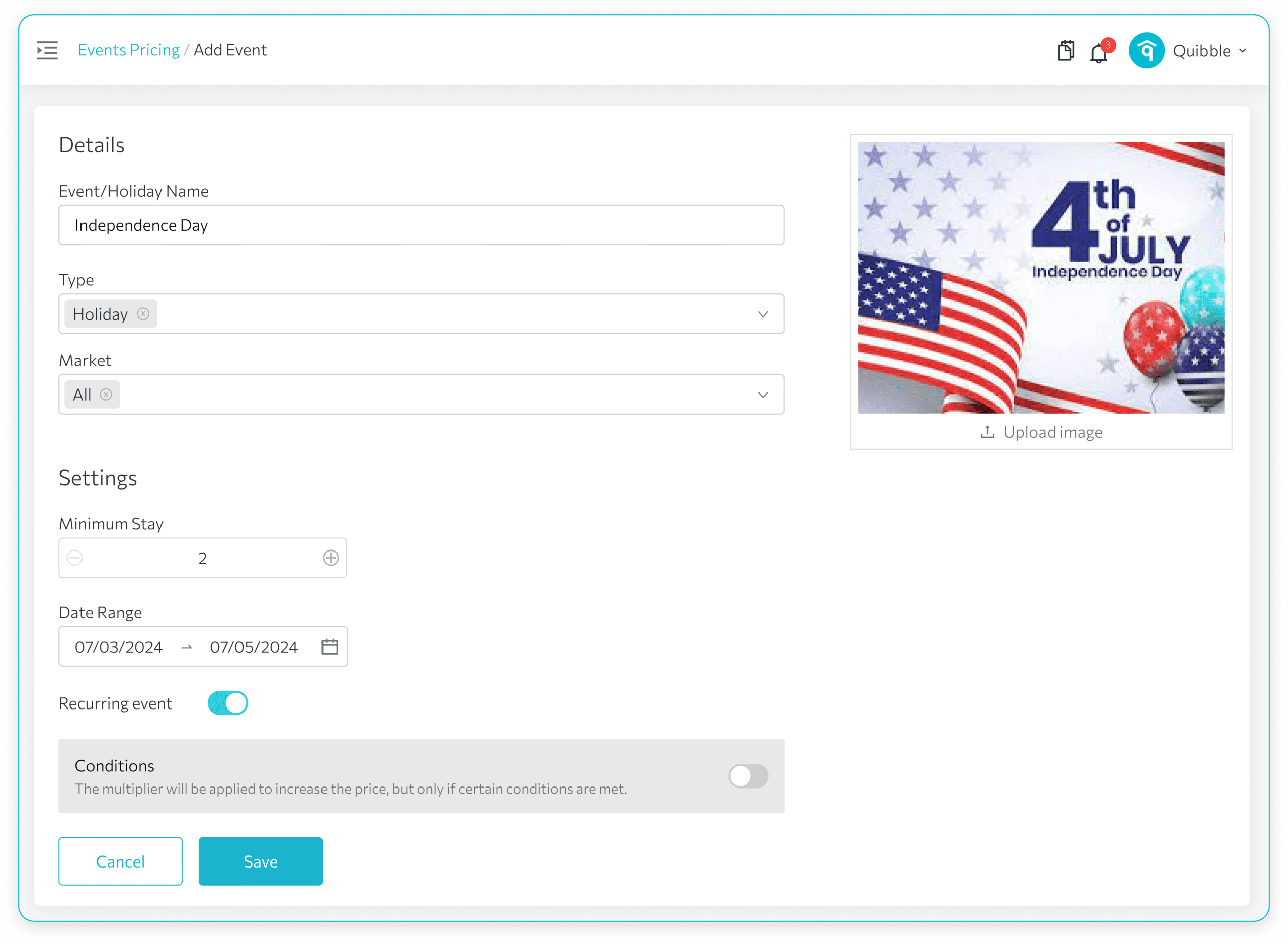
Fill in the event details: name, type (event or holiday), market, minimum stay, date range, a recurring toggle, and an optional image.
4
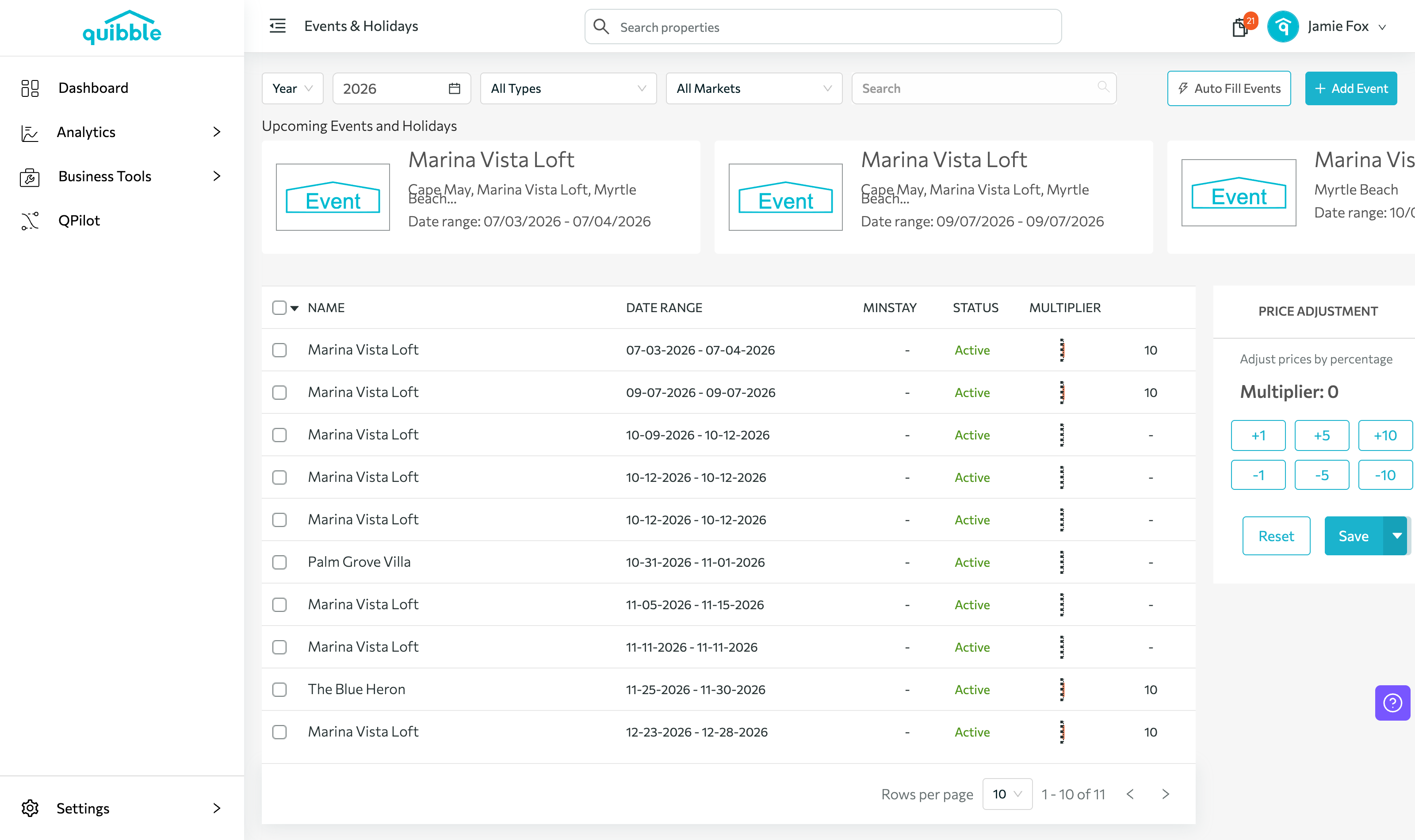
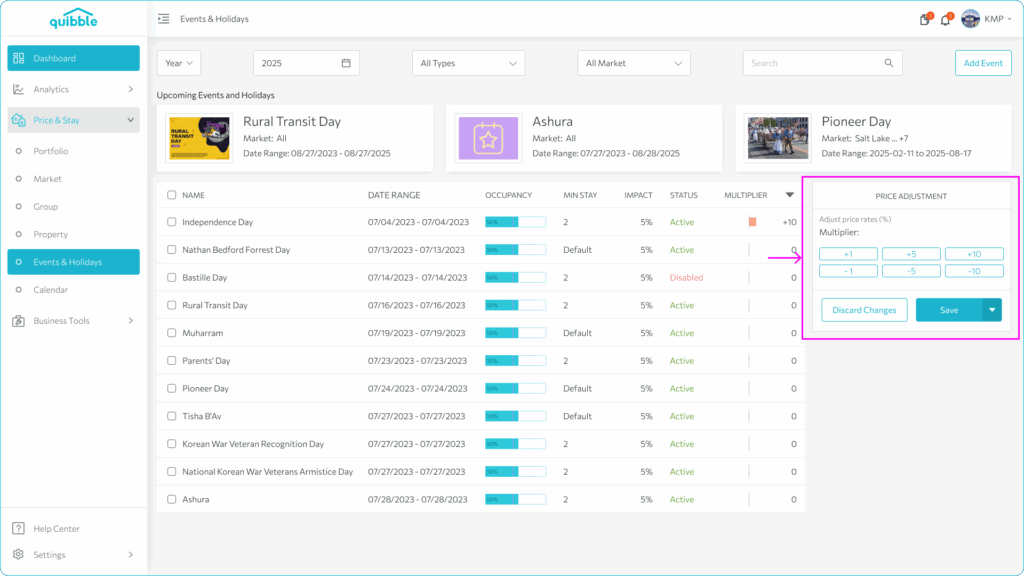
Select the event from the list and choose the pricing multiplier to apply.
5
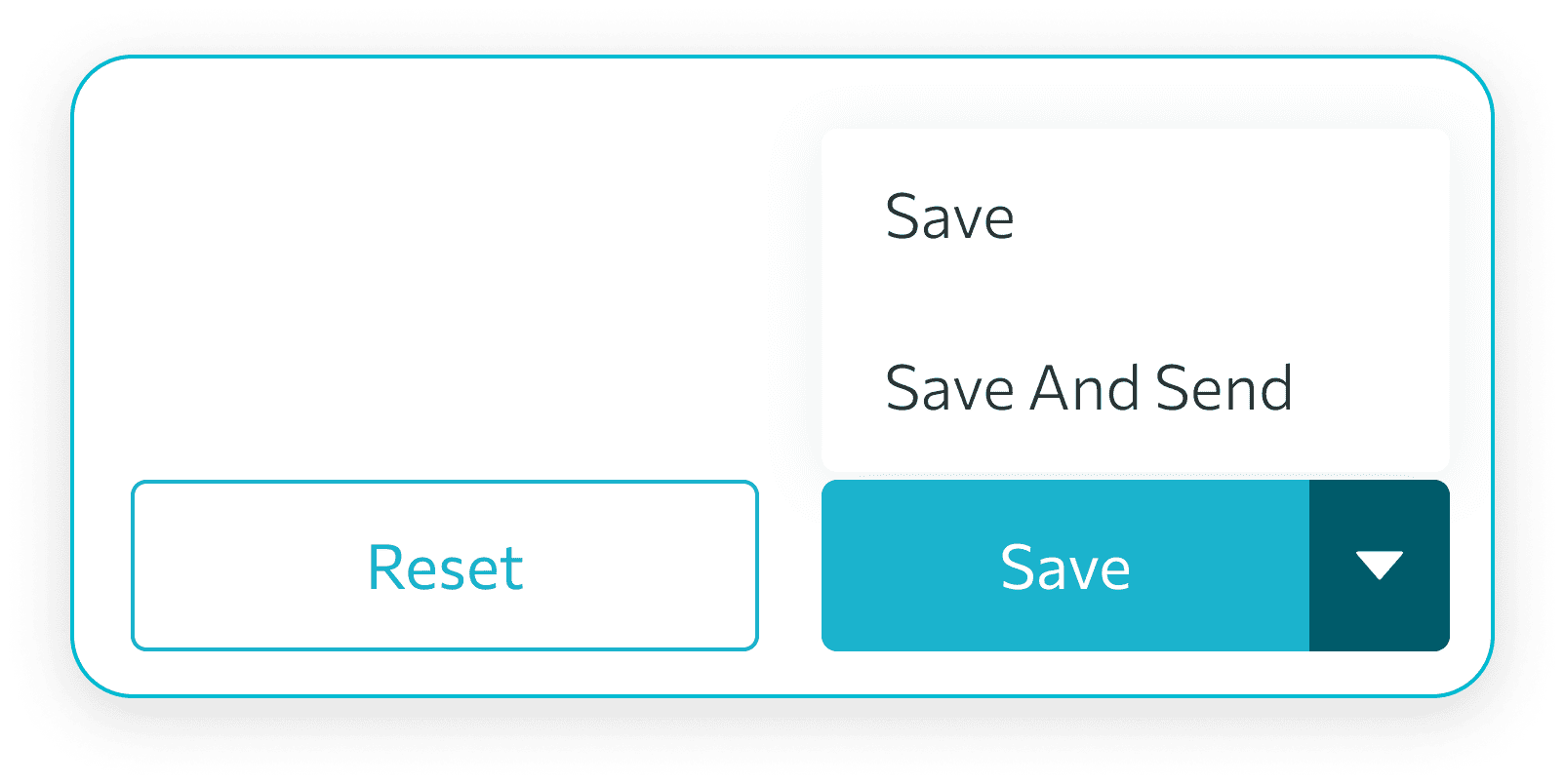
Click Save to apply at end of day, or Save and Send for real-time application.
Didn’t find what you needed? Contact us.